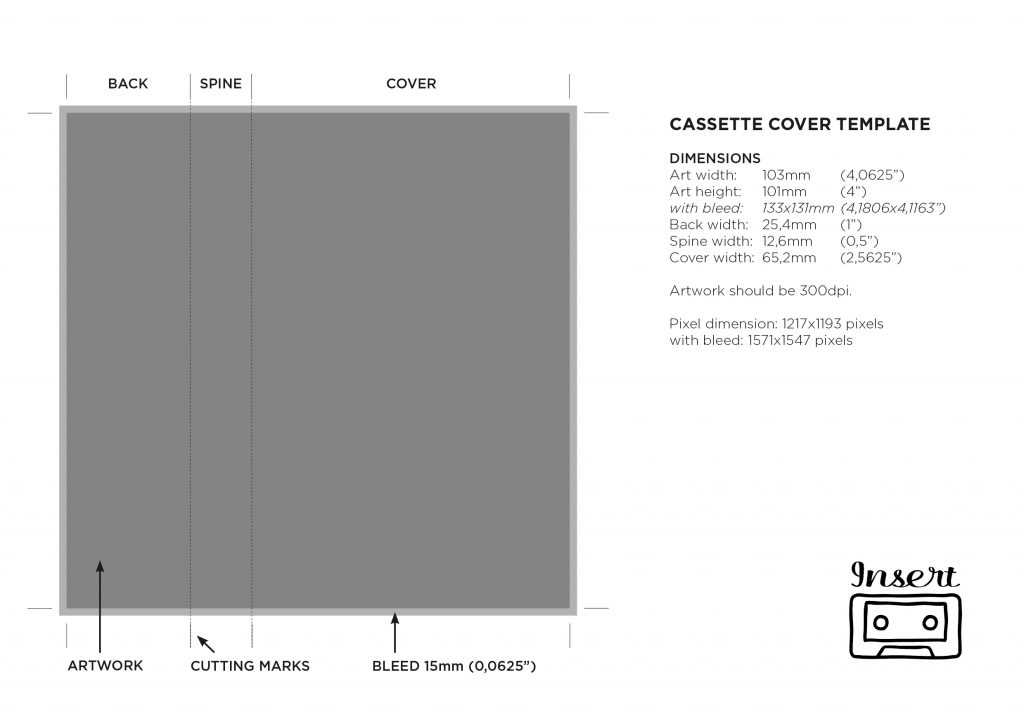
Use a 4.062 x 2.5 inch layout with 0.125 inch bleed on all sides to match standard audio tape case inserts. Set document resolution to 300 DPI and choose CMYK color mode for accurate print output. This prevents trimming errors and color shifts during production.
Design the spine area at 4.062 x 0.5 inches and align text centrally with at least 0.1 inch safe margins. Keep font size between 8 and 10 pt for track titles to maintain readability without crowding. Use bold weight only for the main album name.
Select 120–160 gsm matte paper to avoid glare under plastic case covers. Gloss stock often reflects light and reduces legibility. Test one draft copy before batch printing to verify fold lines and edge alignment.
Include editable fields for artist name, recording date, track list, and side indicators. Limit each side to 30–35 minutes of audio and reflect this on the insert to maintain authenticity. Keep spacing consistent and avoid decorative borders that may shift during trimming.
Printable Cassette Label Template
Set the document size to 4.062 x 2.5 inches with 0.125 inch bleed to match standard tape case inserts. Use 300 DPI resolution and CMYK color mode to prevent pixelation and color distortion during output.
Divide the layout into three functional zones:
- Front panel for album title and artwork
- Spine strip for vertical text
- Rear section for track listing
Keep a 0.1 inch safe margin inside all trim edges. Text placed too close to borders may be cut during trimming. Align spine typography centrally and rotate it 90 degrees for proper case display.
For track lists, use 8–10 pt font size with 12 pt line spacing. Limit each side to 6–8 tracks to avoid overcrowding. Separate Side A and Side B with clear headings in bold weight.
Select paper between 120 and 160 gsm. Matte stock reduces glare under plastic covers, while heavier paper above 200 gsm may resist folding and create uneven edges inside the case.
Use the following export settings before printing:
- PDF format with crop marks enabled
- Embed all fonts
- Disable automatic scaling in printer dialog
Test alignment by printing one draft on plain 80 gsm paper. Insert it into an empty case and verify fold lines, spine centering, and edge trimming accuracy before final production.
Store the master design file with editable text layers intact. This allows quick updates for new recordings while maintaining consistent formatting across multiple tape releases.
Standard Cassette Label Dimensions and Bleed Settings for Accurate Printing
Use a final trim size of 4.062 x 2.5 inches for the J-card front panel and add a 0.125 inch bleed on all sides, resulting in a document size of 4.312 x 2.75 inches. This extra margin prevents white edges after cutting and compensates for minor trimming shifts.
Set the spine strip to 4.062 x 0.5 inches and maintain at least 0.1 inch inner safe margins for all text elements. Place background colors and images beyond the trim line into the bleed area, but keep typography and logos inside the safe zone to avoid clipping during guillotine cutting.
Configure the file at 300 DPI with CMYK color mode and enable crop marks on export. Disable automatic scaling in the printer dialog so the artwork outputs at 100 percent size. Print one proof copy, fold along the panel guides, and verify that edges align precisely within the plastic case before producing the full batch.