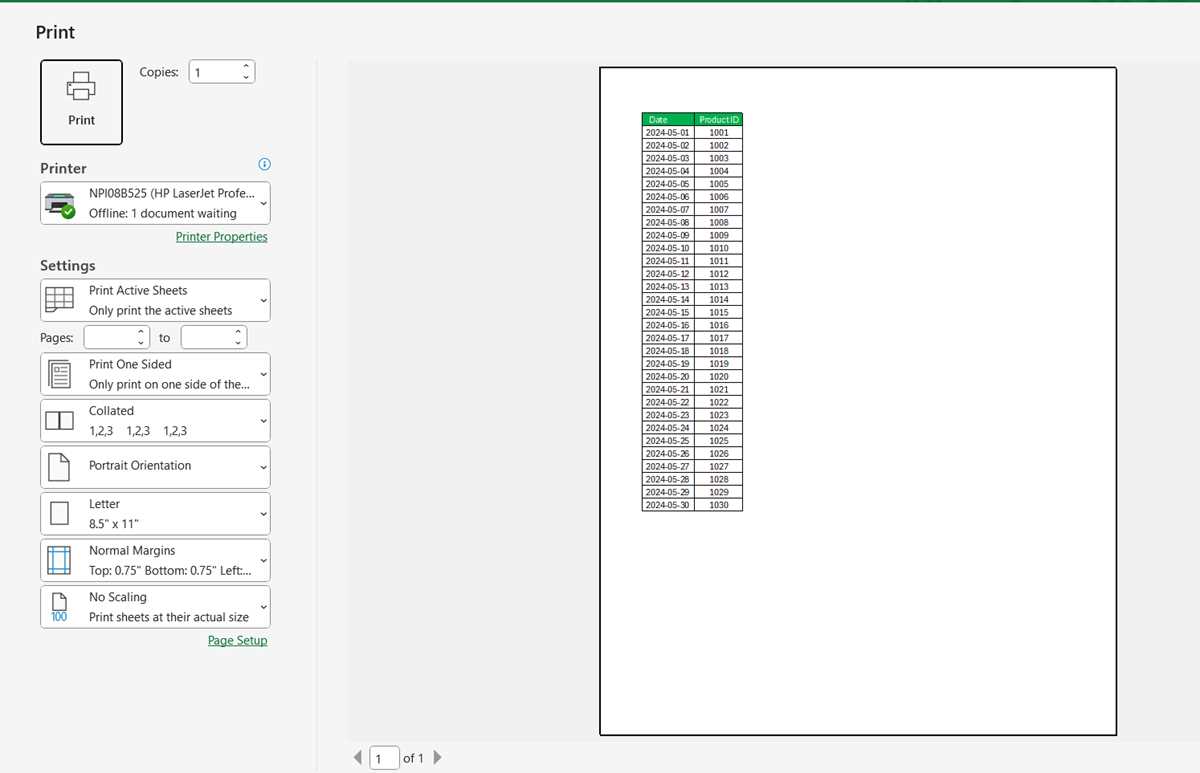
To ensure that your document fits properly on paper and appears as intended, begin by setting the printable boundaries within the settings menu. This defines the part of the worksheet that will appear on the printed sheet, preventing unnecessary content from spilling over onto extra pages.
Begin by selecting the cells you want to be included in the output. Use the page layout view to adjust the margins, page orientation, and scaling options for a cleaner and more professional presentation. Pay attention to the page breaks and adjust them manually if needed to ensure that the data fits neatly within the chosen print dimensions.
After setting up the printable section, it is important to preview how the sheet will appear once printed. The preview tool allows you to make last-minute adjustments before sending the document to the printer. This helps you save time and paper by ensuring that only the necessary information is printed in the desired format.
Adjusting the Print Range in Your Document
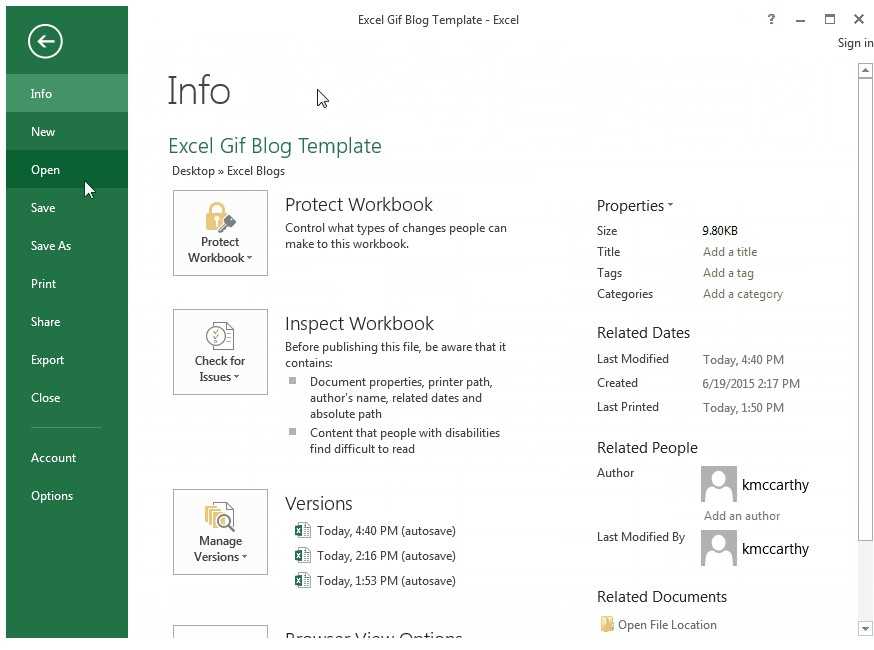
To limit the content that will be included in the output, select the specific cells or ranges you want to appear on the printed page. Navigate to the page layout view and choose the “Set Print Area” option to define which portion of your spreadsheet will be captured. This helps avoid unwanted content from printing and makes the document more concise and organized.
After specifying the print boundaries, check the document using the print preview tool. This feature allows you to review the layout, ensure everything fits within the defined margins, and make adjustments as necessary. Fine-tuning the print range can save paper and improve the overall presentation of your file when printed.
How to Define the Printable Area in Your Document
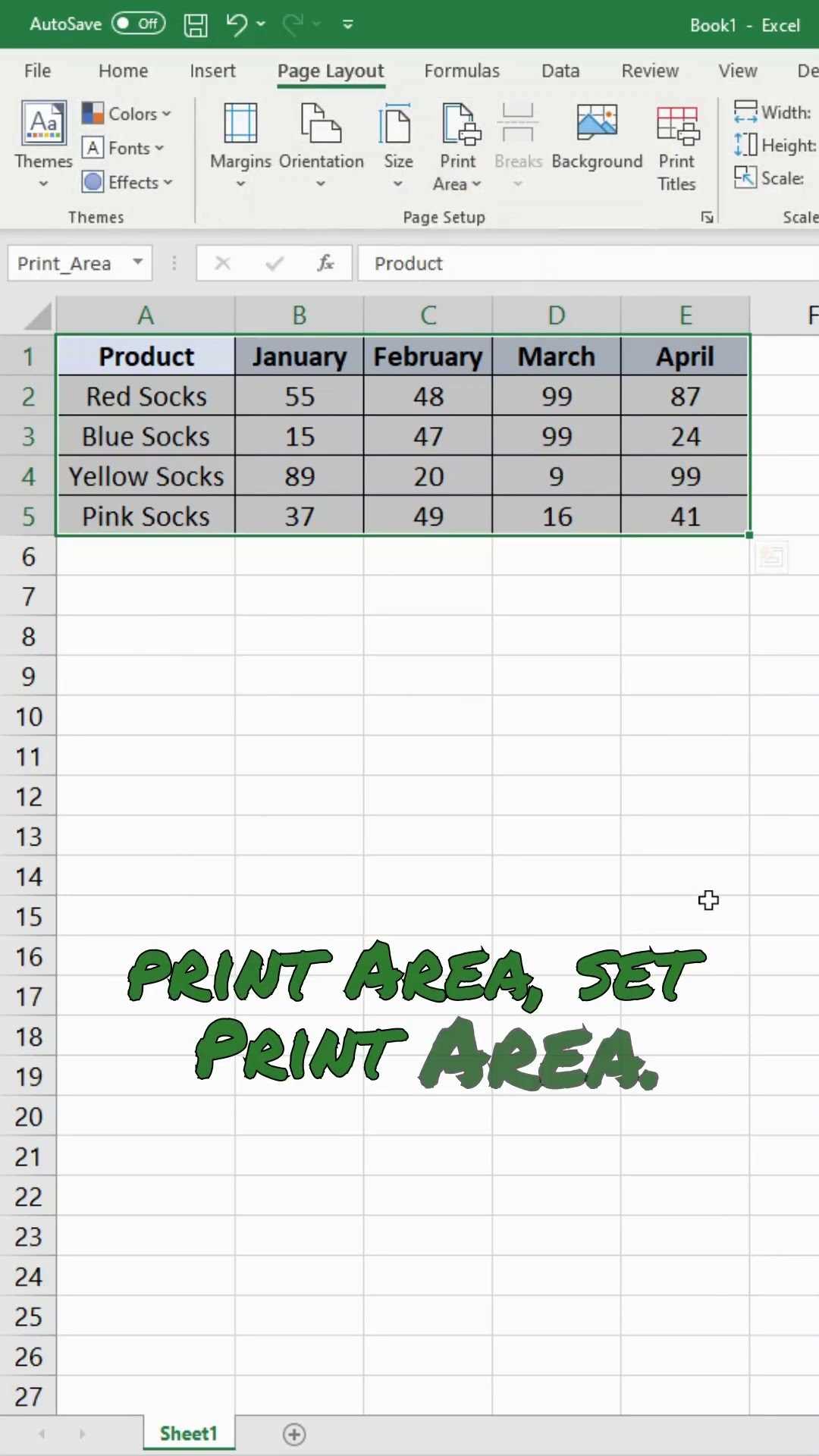
Start by selecting the cells that should be included in the output. Highlight the range of data you want to appear, making sure to exclude any irrelevant rows or columns. Once selected, navigate to the “Page Layout” tab and click on “Set Print Area.” This action locks in the chosen range and ensures that only this section will be printed.
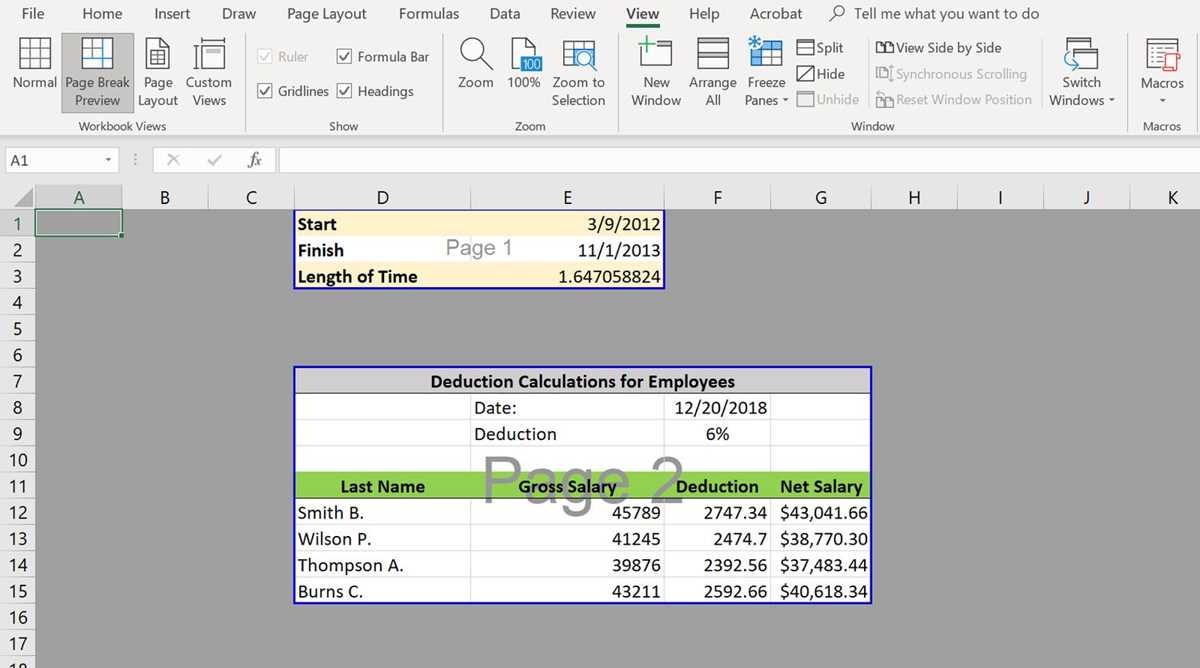
If the print boundaries extend beyond the document’s page margins, adjust the selection by clicking “Clear Print Area” and redefining the range. This will allow you to reset any previous settings and redefine the content to fit within the printable limits.
After defining the print range, use the “Print Preview” option to check the output. This will show how the content will appear on paper and help ensure everything fits properly. If necessary, adjust column widths or row heights before finalizing the selection.
Additionally, consider adjusting the scaling options in the “Page Layout” tab. If your selection does not fit on a single page, you can scale it down by choosing the “Fit to” option, which resizes the content to fit a specific number of pages.
Once satisfied with the preview and the defined print range, you can proceed to print the document. This ensures that only the relevant data is printed, avoiding the inclusion of unnecessary sections or blank spaces.