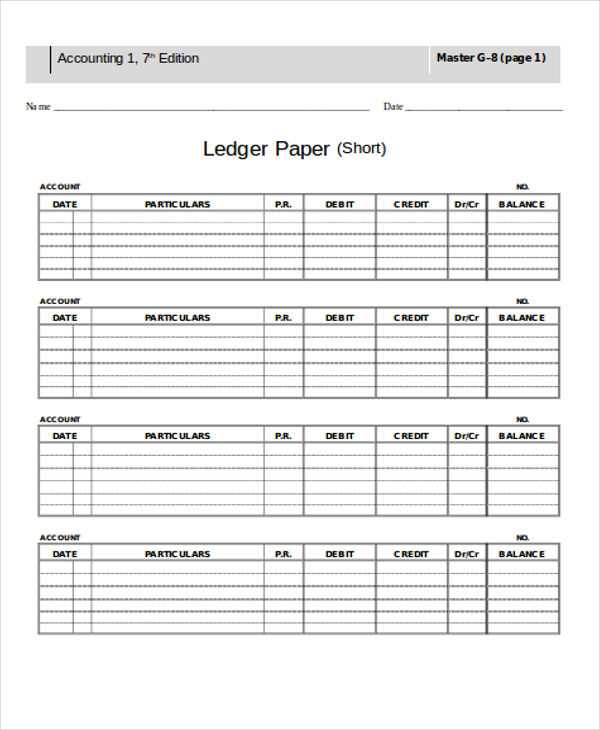
To begin, download and print out neatly structured grid designs to keep your notes or finances organized. The grid format works well for various tasks like budgeting, record-keeping, or any project requiring precise columns and rows. Select a template that matches your preferred layout and size–most designs come in standard letter or A4 formats for easy printing at home.
If you need multiple copies, ensure that the file allows for bulk printing or scaling. Printing several smaller versions on a single sheet can be a great space-saver for quick notes or projects. Depending on your printer settings, you can adjust margins and scale the design to optimize paper usage.
To make the most out of these templates, consider printing on thicker paper for durability. A slightly heavier stock, such as cardstock, will hold up better for long-term use and prevent ink bleeding through. For a more personalized look, choose colored paper or glossy finishes for added flair.
How to Download and Use Structured Templates
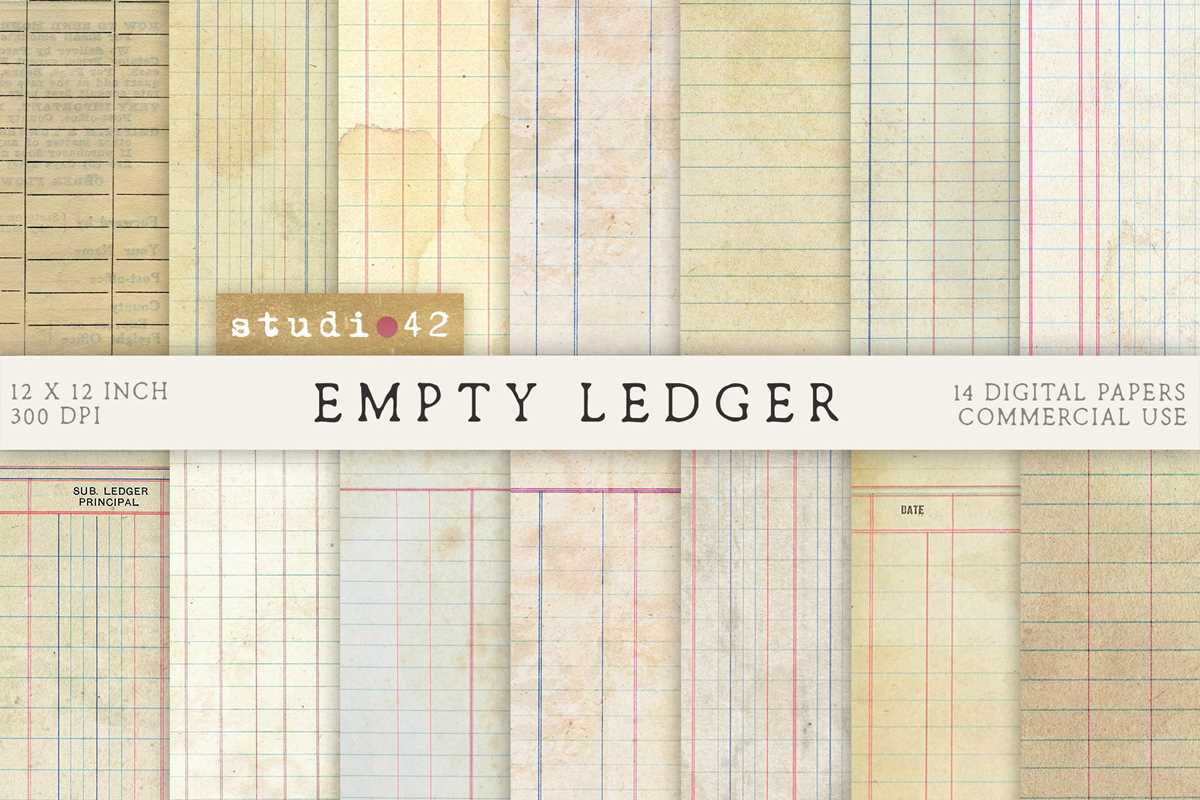
Select the layout that best suits your project needs. For financial tracking, choose a grid with clear divisions for each row and column. If you’re keeping detailed notes, a template with a margin on the left can help you organize information more effectively. Download the template file in the format most compatible with your printer–typically PDF or JPG formats work well for this purpose.
Before printing, adjust the settings on your printer to ensure the design fits neatly on the page. You can scale it to match the size of your paper, whether you prefer to print on standard letter-size or A4. For bulk printing, look for settings that allow you to print multiple smaller versions on one sheet. This feature is helpful when you need quick access to several pages but don’t want to waste paper.
For added durability, print on thicker material, such as a heavier-weight stock. This can help prevent tearing and ensure the pages hold up over time, especially if you’re using them regularly for tasks like budgeting or tracking expenses. If you’re looking for more flair, try using colored or textured options to make your project stand out.
How to Print Ledger Paper on Standard Home Printers
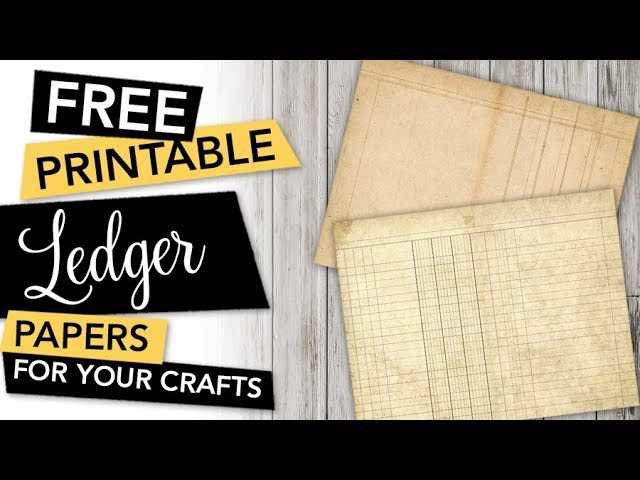
Start by selecting the right template for your needs. Check the dimensions and ensure the design will fit onto the standard letter-size or A4 paper your printer uses. If the layout includes multiple columns or detailed grids, make sure the template is clear and well-aligned to avoid any distortion when printed.
Open the file on your computer and choose the print option. Before pressing “Print,” go to the printer settings and select “Fit to Page” or adjust the scaling options to ensure the design fills the entire sheet. This will help prevent any excess white space around the image and ensure that the template is printed at the proper size.
If you’re printing multiple templates, check the settings to print more than one version per sheet. Many home printers offer a feature that allows you to print two or four smaller versions on a single page. This is ideal for saving paper or when you need more templates quickly.
Make sure to choose the highest print quality available in your printer settings. This ensures the lines in the grid will be sharp and clean, which is especially important for projects requiring accuracy, such as budgeting or record-keeping. Using a higher print quality may use more ink, but the result will be much clearer.
For longer use, consider printing on thicker material. Regular printer paper works for short-term projects, but heavier stock, such as cardstock, will prevent pages from tearing over time. This is particularly useful if the sheets are being handled frequently or stored in a binder.
Always check the preview before printing to ensure everything looks correct. Printer settings can sometimes adjust layouts unexpectedly, so a quick look at the preview screen can help avoid printing mistakes and save paper.
If you’re printing a large batch, you may want to organize the files into a folder on your computer. This allows for easy access and batch printing without needing to search for individual files. Consider labeling the templates for easy identification, especially if you use them for different projects or categories.