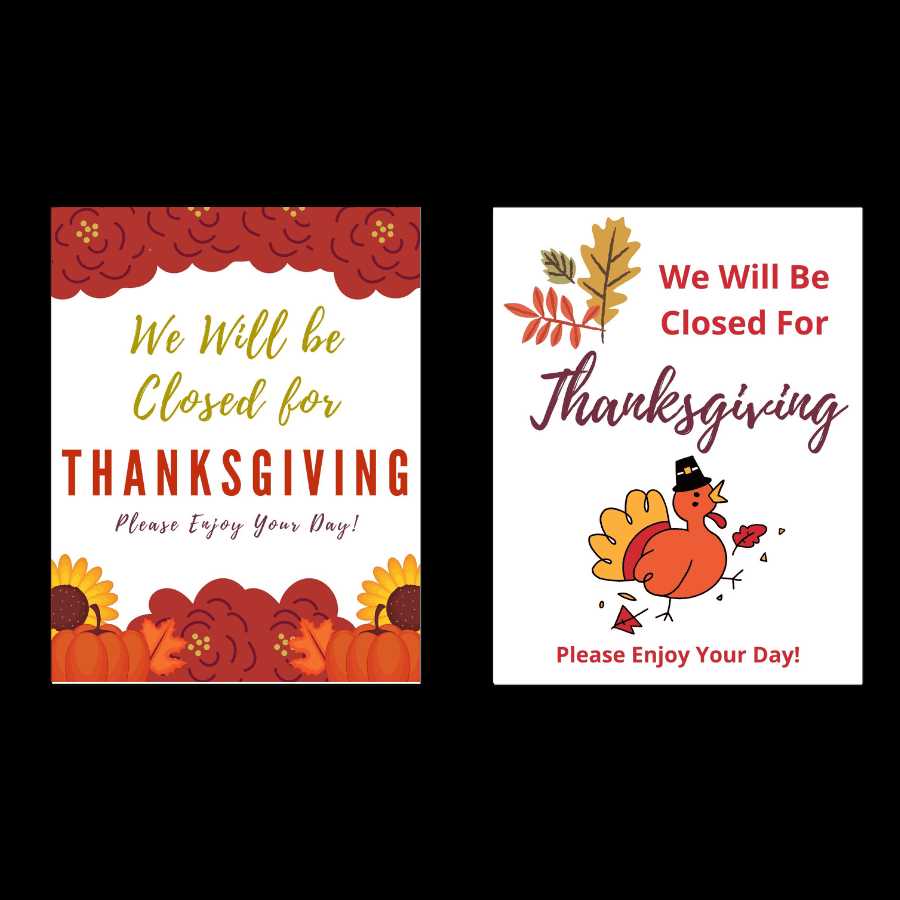
To inform your customers about your business hours during the holiday season, using a simple, easy-to-create notification is key. Design your own holiday closure notification with a few clicks using online templates. Customize the message, colors, and fonts to suit your style or brand, and you’re ready to print.
If you’re looking to print a sign with the correct dimensions, start by selecting a standard letter-size or poster format. A typical 8.5 x 11-inch printout works well for most storefronts, but if you need a larger version, 11 x 17 inches is ideal for high visibility. Ensure the text is clear and large enough to read from a distance.
Numerous websites offer templates that let you adjust the design to your specific needs. After customizing the layout, you can save it as a PDF or image file and print it at home or at a local print shop. Some platforms also provide high-quality downloads that are optimized for professional printing services.
Creating the Perfect Message for Your Holiday Closure
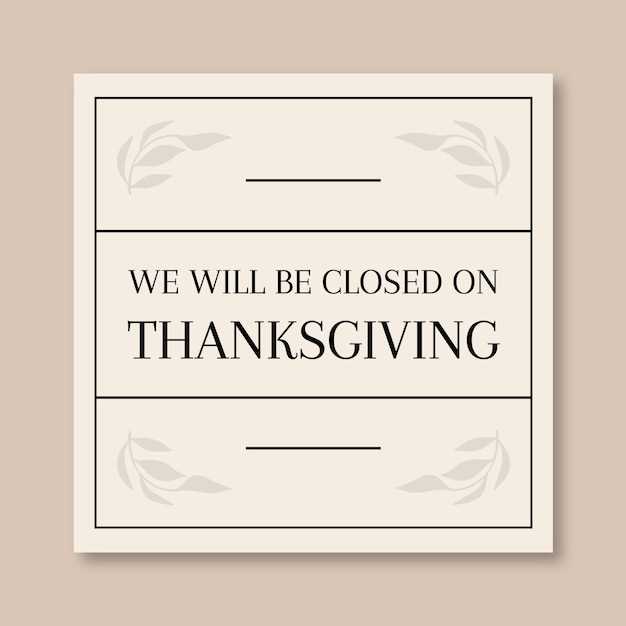
When preparing a notification for your holiday hours, focus on clarity and simplicity. Make sure your message is straightforward, highlighting the exact dates and times your business will not be open. Avoid using excessive text–one or two sentences should suffice to convey all necessary information.
Ensure the tone of your message matches the spirit of the season. Consider using friendly and inviting language, like “We’ll be closed to celebrate with family” or “Enjoy the holiday with us, we’re taking a break.” This creates a warm, personal touch while still communicating important details.
Use large, bold fonts for the key information. Customers should be able to spot the closure dates at a glance. Place the text centrally on your sheet or poster to make it visually appealing and easy to read from different distances.
If you’re aiming for a more polished design, take advantage of online tools that allow you to adjust the color scheme. Soft autumn colors such as gold, orange, or brown are perfect for this time of year, making the notice feel seasonal while remaining professional.
Consider the placement of your notice. If you’re putting it in a physical location like a door or window, make sure it’s visible from both inside and outside. For those with multiple locations, you can print several copies and post them in high-traffic areas.
For digital formats, ensure your message is optimized for web viewing. Use a high-resolution image or PDF that will remain clear when zoomed in or displayed on different devices. The text should be legible even on smaller screens like smartphones and tablets.
Keep your design versatile by allowing room for adjustments. For example, add a blank space for a personalized note or specific details, such as a return-to-work date or special offers following the holiday break. This adds a thoughtful touch while maintaining the focus on your closure dates.
After printing your notification, check the final product for any errors or unclear text. Make sure the information is easy to read and the design elements don’t overpower the message. A clean, professional layout helps reinforce your brand’s attention to detail and customer service.
How to Customize Printable Closed for Thanksgiving Signs for Your Business
Start by selecting a template that suits the aesthetic of your business. Many online platforms offer basic layouts that can be easily tailored. Once you’ve picked a template, ensure it reflects your brand’s colors and fonts to maintain consistency.
Personalize the message to make it feel welcoming and professional. Replace standard text with a short, friendly note like “We’ll be closed to celebrate the season with family and friends” or “Enjoy your holiday, we’ll see you soon.” Keep it concise, focusing only on the important details.
Adjust the size of the text to highlight the closure dates. Ensure the date is prominent by increasing the font size or using bold formatting. This ensures customers see the information right away without having to search for it.
Incorporate your logo or business name for a personalized touch. Place it at the top or bottom of the design to make it stand out. If your logo has colors that contrast well with the background, use them to draw attention to the message without making it overwhelming.
To make the notification more festive, consider adding seasonal elements like autumn leaves, pumpkins, or subtle holiday patterns. Avoid overcrowding the design–simple accents can make the notice more engaging without distracting from the important information.
If you plan to display the notification digitally, ensure it’s sized correctly for different platforms. For website banners, a wider format works best, while social media posts may require a square or vertical design. Test the visibility on various screen sizes before finalizing the design.
Once you’re satisfied with the customization, save the file in a high-quality format. This ensures your design remains sharp and clear when printed or shared online. If necessary, make a test print to check for any issues with text alignment or image clarity before printing multiple copies.