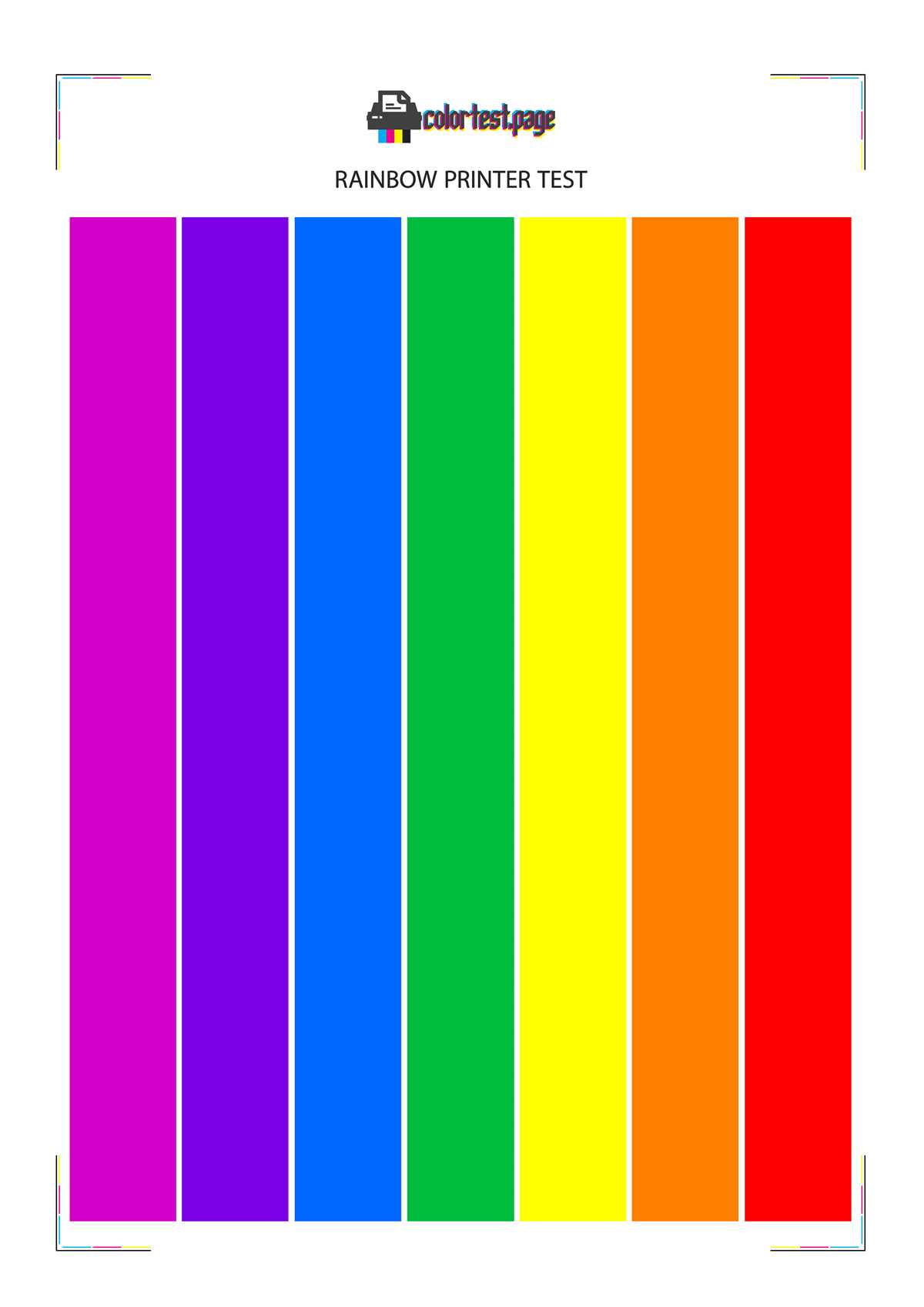
To maintain high-quality output from your machine, start by running a diagnostic print to evaluate the output. Print a sample with varying shades and gradients to identify any inconsistencies. A proper check-up will reveal whether your machine is generating accurate tones or displaying unwanted distortions.
If the print results are not aligned with expectations, consider examining the ink levels and clean the mechanism. Blockages or low ink could lead to color inconsistencies. Also, verify the paper type settings in the software to ensure that the right configuration is being used for the specific media.
If issues persist, consider resetting or recalibrating the device using the software provided by the manufacturer. This can resolve minor misalignments and ensure that hues are printed as intended. Regular calibration and maintenance are necessary to keep your device functioning at its best, especially for important printing tasks.
How to Perform a Printer Evaluation for Accurate Output
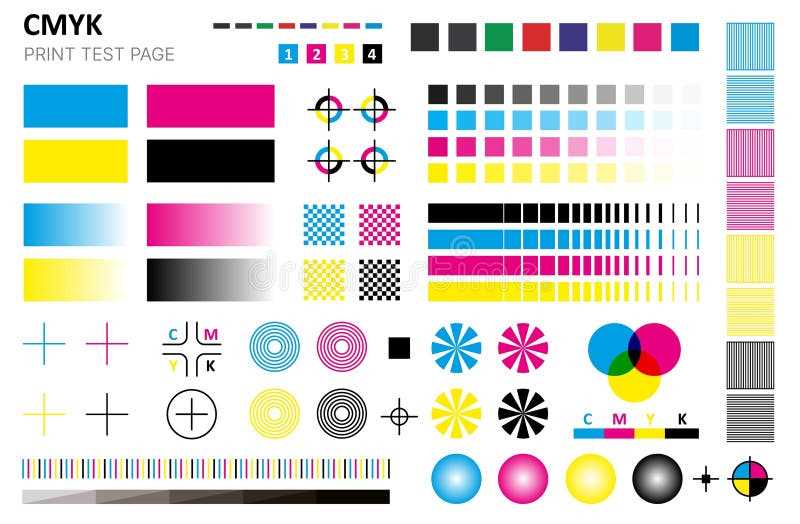
Start by printing a test sheet with a variety of designs: gradient color bars, black-and-white text, and sharp lines. This will help you identify any inconsistencies in the output, such as faded hues or incomplete color transitions. Pay attention to any areas where the details appear blurry or the color fades unevenly.
Next, check the ink or toner levels. Low ink can result in poor reproduction of details and washed-out colors. If your device uses individual cartridges, check each one to see if any need replacing or refilling. When ink levels are balanced, you’ll get clearer and more consistent prints.
Paper choice plays a significant role in the final result. Ensure that the paper type setting on the device matches the type of paper you are using. For instance, glossy paper requires different settings compared to regular printer paper. This adjustment will help your printer use the right amount of ink to produce optimal results.
If your results are still subpar, inspect the print heads. Dirty or clogged print heads are a common cause of uneven color output. Most devices have a built-in cleaning function in the maintenance menu, which can help clear out any blockages. Perform this procedure if you notice smudging or incomplete patterns.
Make sure the software settings on your computer are correctly aligned with your goals. Select the correct resolution for the print job. If you’re working on documents with detailed images or text, use the highest possible resolution for sharpness and clarity. Adjusting these settings can significantly improve the final output.
If you continue to experience issues, perform a calibration. Printers sometimes require recalibration to ensure precise color rendering. Follow the manufacturer’s instructions for calibrating your device. This often involves printing specific alignment pages to adjust settings automatically.
Regularly updating your printer’s driver can also fix minor issues. Check the manufacturer’s website for the latest version, as software improvements may address known issues, including color fidelity problems. An outdated driver can result in incorrect rendering or color shifts.
Lastly, if the problem persists, it may be time for a more thorough inspection or professional maintenance. While basic troubleshooting can resolve minor issues, persistent problems may indicate deeper mechanical issues. Contact a service technician to inspect the printer thoroughly.
How to Set Up a Color Test for Your Printer
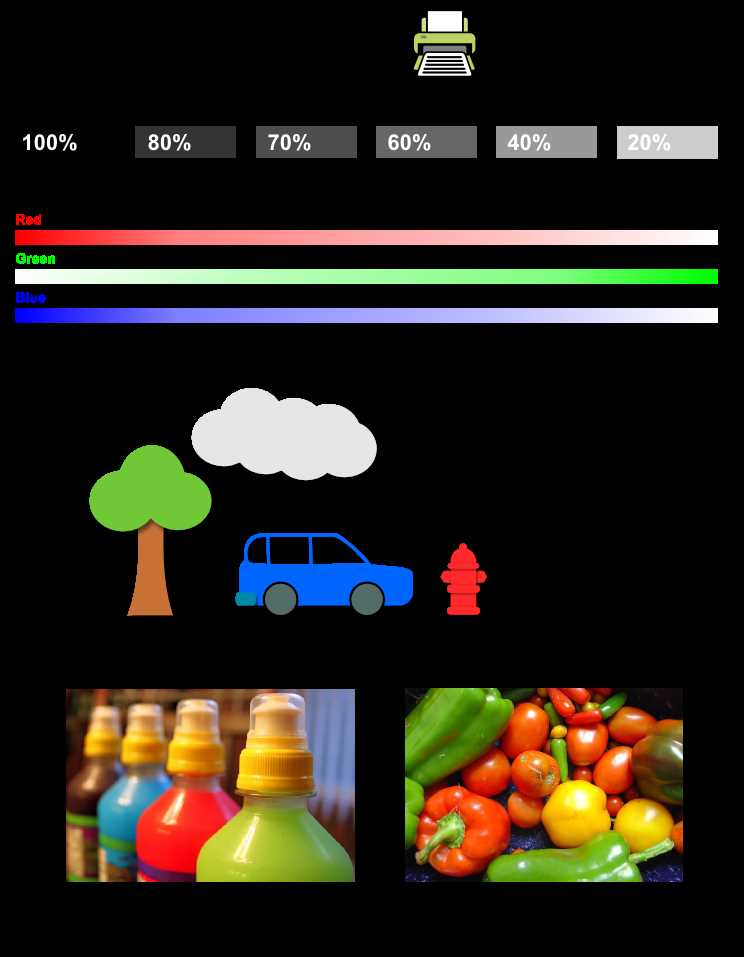
Start by selecting a document or an image with a mix of vibrant hues and detailed patterns. A good choice is a high-resolution test sheet featuring various colors and gradient shades. This will help you check for accurate reproduction and uniformity in the output.
Make sure to adjust the settings for the correct paper type and quality. If you’re using glossy or photo paper, select that option in your printer’s settings. The wrong selection can distort how your device applies ink, resulting in poor-quality prints.
Before running the evaluation, ensure that the device’s ink or toner cartridges are full and properly installed. Low or improperly placed cartridges may lead to incomplete or inaccurate reproductions, especially in intricate patterns.
If the results are unsatisfactory, clean the print heads. Many devices include an automatic cleaning function that can help clear any clogs that might affect the consistency of your outputs. A quick clean can often improve the sharpness and detail of the output.
Check the software settings on your computer or device. The print resolution should be set to high for detailed images and graphics. This setting ensures that fine details are not lost during the printing process, especially when you’re printing documents with gradients or fine text.
Finally, perform a calibration if necessary. Some devices allow you to manually calibrate them through the software interface. This step helps ensure that the printed output closely matches the colors displayed on your screen, improving overall accuracy.