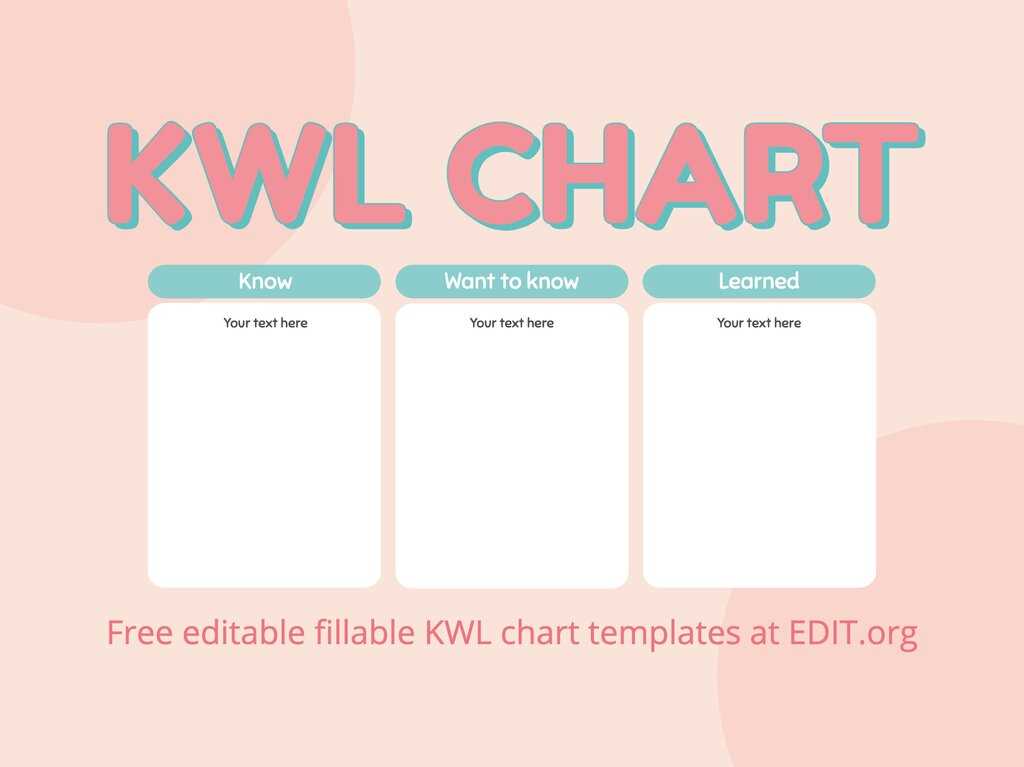
Start by downloading a customizable template to track what students know, want to learn, and have learned. This method provides a structured approach to guide discussions, whether for a single lesson or across a unit. It’s perfect for visual learners and helps keep the class focused on key objectives.
These visual tools are designed to be interactive, allowing students to fill them in as they progress. They can be used for any subject or topic, making them highly adaptable. Whether you’re introducing a new concept or reviewing material, they provide a clear framework for capturing and organizing thoughts.
To get the best results, ensure the layout is easy to read and fill out. Print on high-quality paper for durability, and laminate if you plan to reuse them for multiple lessons. Having these resources on hand helps maintain engagement and allows students to track their own learning journey.
How to Use a Learning Organizer for Better Understanding
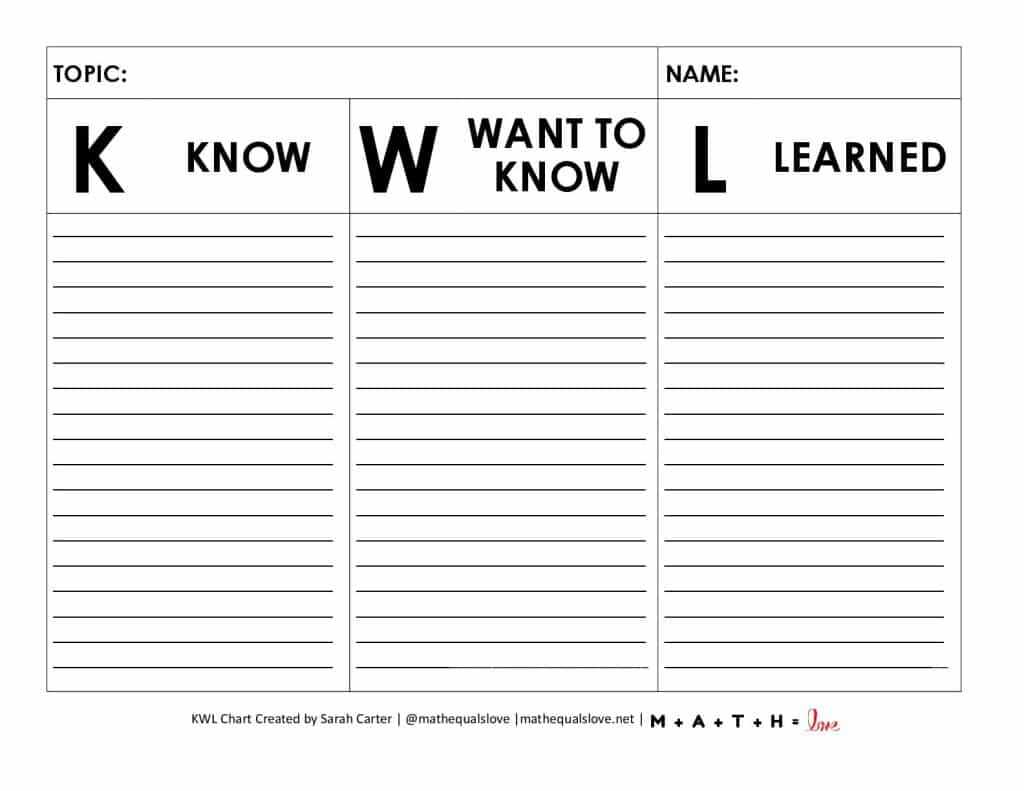
Begin by identifying the key concepts that students already know. This helps activate prior knowledge, making it easier for them to connect new ideas. You can fill in the first section with information gathered from discussions or pre-assessment activities.
The second section should focus on questions or topics students are curious about. Encourage them to reflect on what they want to explore further. This list will guide your lesson plans and allow you to tailor the material to students’ interests and needs.
Finally, after completing the lesson or unit, revisit the third section where students can document what they’ve learned. This step not only reinforces new concepts but also allows for self-assessment. It’s a useful tool for both students and educators to measure progress.
Consider making this tool available in multiple formats. You can offer paper versions for hands-on activities or digital copies that can be filled out on tablets or computers. This flexibility supports a variety of learning styles.
For long-term use, you can laminate the templates and use dry-erase markers to make them reusable. This method is especially helpful for reviewing multiple topics throughout the year, saving time and resources.
Be sure to adapt the layout to suit different grade levels. Younger students may need a simplified version, while older students can benefit from more detailed sections to explore deeper concepts. Customize the tool based on the subject matter to ensure it’s relevant and engaging for all students.
How to Create and Customize a Learning Organizer Template
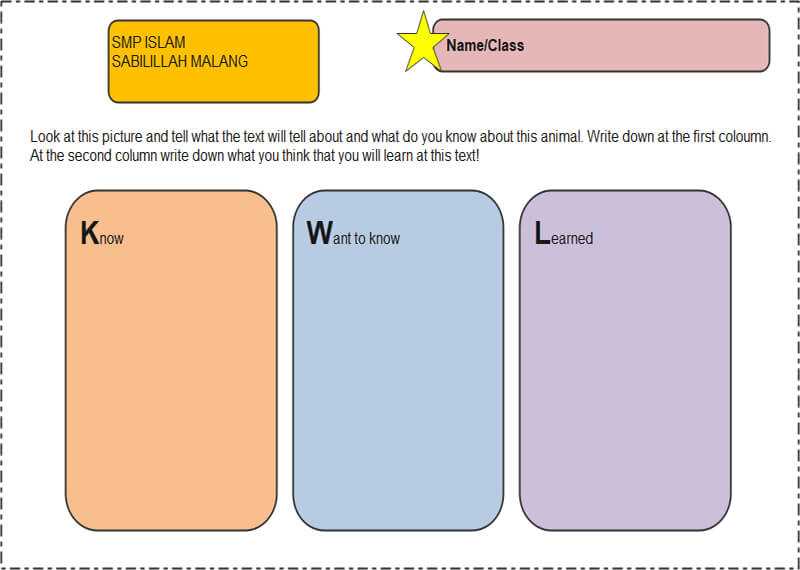
Start by creating a simple table with three columns labeled “What I Know,” “What I Want to Know,” and “What I Learned.” You can adjust the size of each column depending on the amount of space needed for student responses. Leave room for student input in each section to ensure it’s easy to fill out during the lesson or unit.
To personalize the template, add design elements like colors, fonts, and images that align with the lesson’s theme or subject. For example, if you’re teaching a science unit, incorporate related visuals such as molecules or lab equipment. Customizing the look can make it more engaging for students and provide visual cues to support their learning.
If you’re using the organizer digitally, include fields that can be filled in online or on a tablet. This allows for easy access and can be shared with students through cloud storage or learning management systems. Keep the layout clean and simple, ensuring that the template remains easy to navigate and fill out in any format.