Download a high-resolution PDF invitation styled as a magical school enrollment notice and edit the student name, house, and date before printing on A4 or US Letter paper. Use 300 DPI resolution and select “Actual Size” in the printer dialog to keep margins and layout aligned.
Choose parchment-style paper between 120–160 gsm to recreate the look of aged stationery. Set the font to a classic serif such as Garamond or Caslon at 12–14 pt for the body text, and enlarge the recipient’s name to 18–24 pt for clear emphasis.
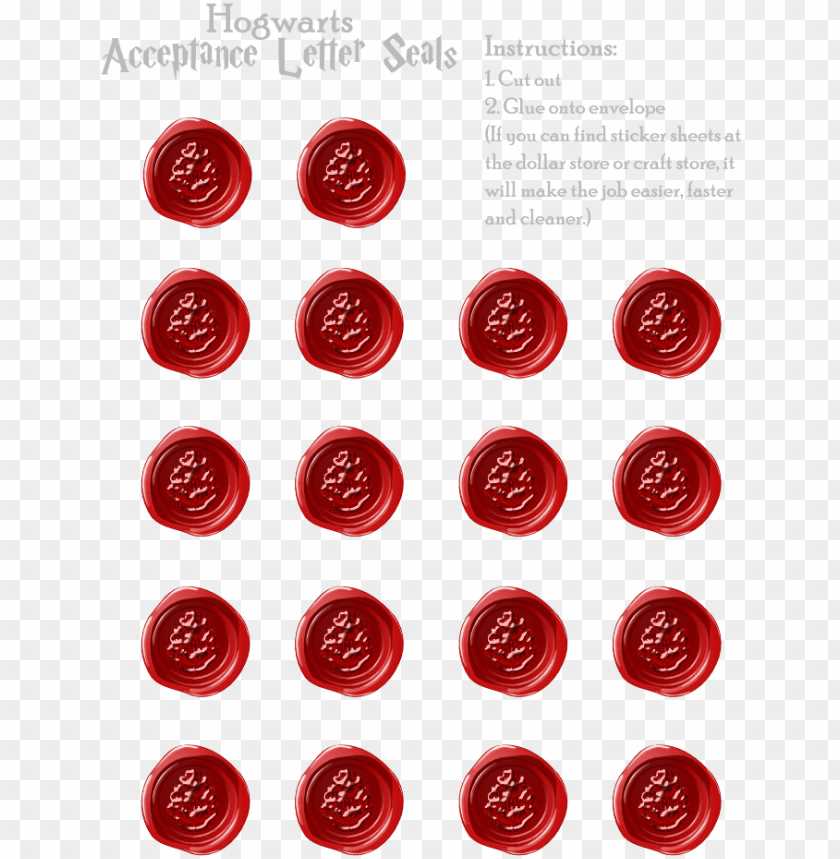
Add a red wax-style seal graphic and position it 25–30 mm from the bottom edge for a balanced composition. For an antique effect, lightly brush the sheet edges with diluted brown ink or tea stain, then allow it to dry flat for at least two hours before placing it in an envelope.
Free Printable Hogwarts Acceptance Letter
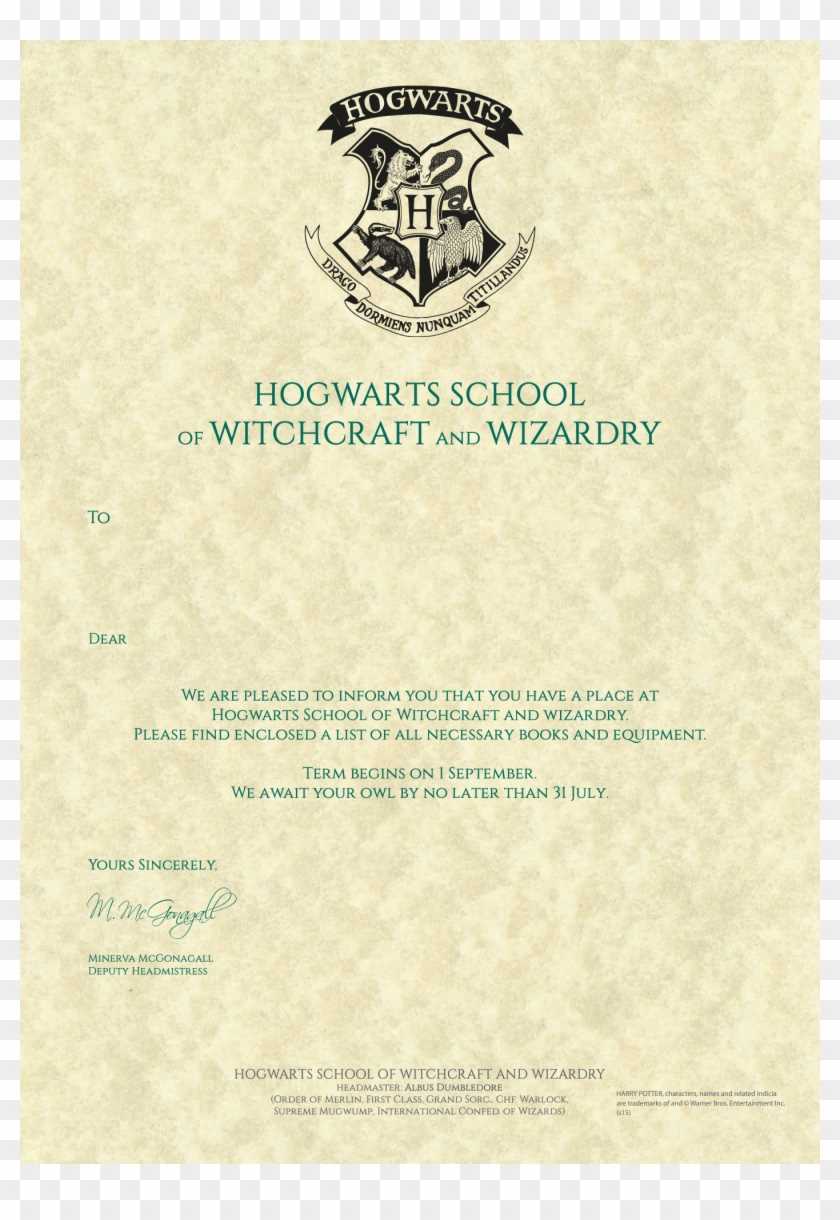
Download the wizard school admission template in high-resolution PDF format at 300 DPI and personalize the recipient’s name, assigned house, and term date before printing on A4 or US Letter paper. Select parchment-style stock between 120–160 gsm, set scaling to “Actual Size,” and keep margins at 10–15 mm to preserve the crest placement and signature block alignment.
For a screen-accurate look, use a classic serif typeface such as Garamond or Baskerville at 12 pt for body text and 20 pt for the student name, align the heading centrally, and insert a red wax-style seal graphic 25 mm above the bottom edge. Lightly distress the sheet with diluted tea brushed along the borders, let it dry flat for two hours, then place it in a C5 envelope addressed in dark ink for a convincing magical presentation.
How to Customize the Student Name House and Date in the Template

Open the PDF in Adobe Acrobat or import the DOCX file into Microsoft Word and activate editing mode to replace placeholder text with the recipient’s details while preserving the original layout.
- Highlight the student name field and enter the full name using a serif font such as Garamond or Baskerville.
- Set the size between 18–24 pt for the name to create visual hierarchy above the body text.
- Keep line spacing at 1.15 to prevent shifting the crest or header.
Adjust the assigned house by editing the designated line beneath the greeting. Match the house color reference in the small emblem if included in the file, ensuring text alignment remains centered or left-aligned according to the original design.
- Locate the term start date line near the lower paragraph.
- Use a formal date format such as 1 September 2026.
- Maintain the same font size as the body text, typically 12 pt.
Check margins after editing to confirm that added characters have not pushed text beyond 10–15 mm from the page edge. Use “Print Preview” at 100% zoom to verify spacing consistency.
If the template includes editable signature lines, type the professor’s name in italic style at 14 pt and align it slightly right of center to simulate a handwritten placement.
- Lock the background layer if working in Canva or similar software to avoid moving decorative elements.
- Export the final file as a high-resolution PDF at 300 DPI.
- Reopen the exported version to confirm all fields display correctly before printing.
Save both the personalized version and an untouched master copy in separate folders to allow future edits without rebuilding the layout.