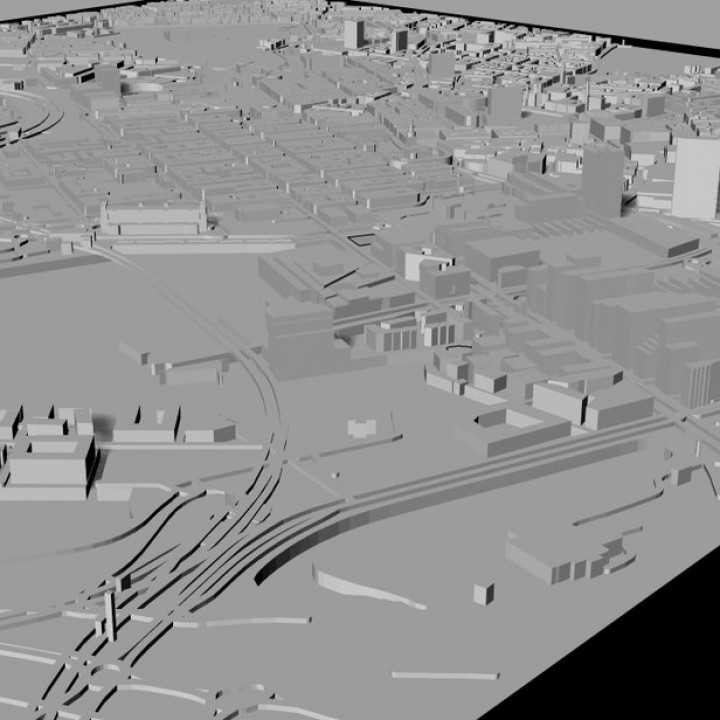
Begin by selecting a reliable source for 3D models suited to your project. Many websites offer free or premium designs that are compatible with 3D printers. Choose models that match your requirements, whether it’s for terrain features, cities, or specialized regions. Make sure to download the design in a file format like STL or OBJ, which are compatible with most 3D printing software.
Next, use 3D design software to customize the model if necessary. Tools like Tinkercad, Fusion 360, or Blender allow you to adjust the size, add elements, or refine details. You can modify the design based on your printer’s capabilities and material preferences. Scaling the model to fit your printer’s bed size will ensure the print is accurate and feasible.
Before sending the model to your 3D printer, verify the settings for print quality and material choice. Different printers may require specific configurations for best results, especially with intricate details. Choose the right filament based on the durability and finish you desire. Common materials include PLA, ABS, and resin, depending on the complexity of the design.
3D Printable Maps Guide
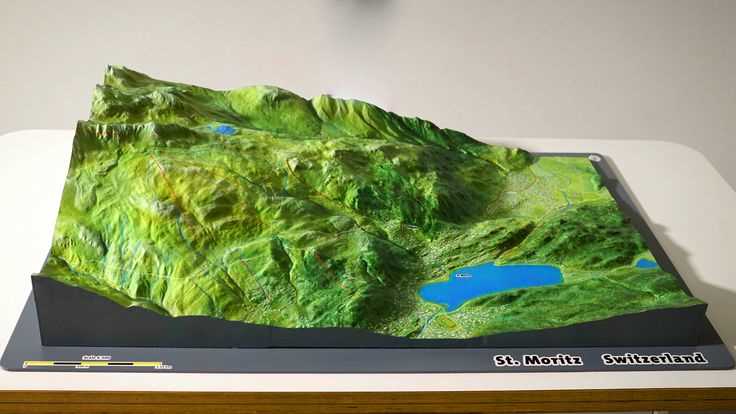
Start by choosing a reputable source for obtaining 3D terrain and city designs. Websites like Thingiverse, MyMiniFactory, and Cults offer a variety of pre-made files in formats such as STL or OBJ. These files are compatible with most 3D printers, allowing for immediate use after downloading. Make sure the file size is suitable for your printer’s bed size to avoid scaling issues.
If the design isn’t exactly what you need, use editing software like Tinkercad or Blender to modify the layout. These programs offer easy-to-use interfaces for beginners and advanced users alike. In Tinkercad, for example, you can add or remove features, change dimensions, or combine multiple models to create a custom structure.
Another consideration is the level of detail required for your project. Some models come with intricate topography or specific landmarks, which may require high-resolution printing settings. If you are printing detailed terrain features, ensure that your printer is capable of producing fine details by adjusting the layer height to a lower value.
Before starting the printing process, check the orientation of the design. Some 3D printers may require models to be rotated to minimize supports or to enhance the print quality. Experiment with orientation to ensure that the printed structure holds its intended shape and that features such as roads, rivers, or other elements are clearly visible.
Once you are satisfied with the design, adjust the printer’s settings for optimal output. Select a suitable filament based on your project’s needs–PLA for ease of use, ABS for durability, or resin for detailed finishes. Make sure to also select the appropriate print speed and temperature settings for your material to prevent common issues like warping or poor adhesion.
When the model is ready to be printed, perform a test run with a small section to check the fit and finish. This step helps you identify any issues before committing to the full print, such as misalignment or under-extrusion. Some printers also allow you to print preview layers, which can help ensure that the model will print correctly.
During printing, be patient, as 3D printing can take several hours depending on the model’s complexity. Check the progress periodically to ensure there are no issues with the printer’s functionality. If necessary, pause the print to correct any mistakes, such as layer misalignment or material shortages.
Once the print is finished, carefully remove the structure from the printer’s bed. If you used support structures, gently remove them with tools like tweezers or a scalpel. Depending on the complexity of the design, you may need to perform post-processing work such as sanding or painting to achieve a smoother finish or add color.
How to Download and Access 3D Map Models
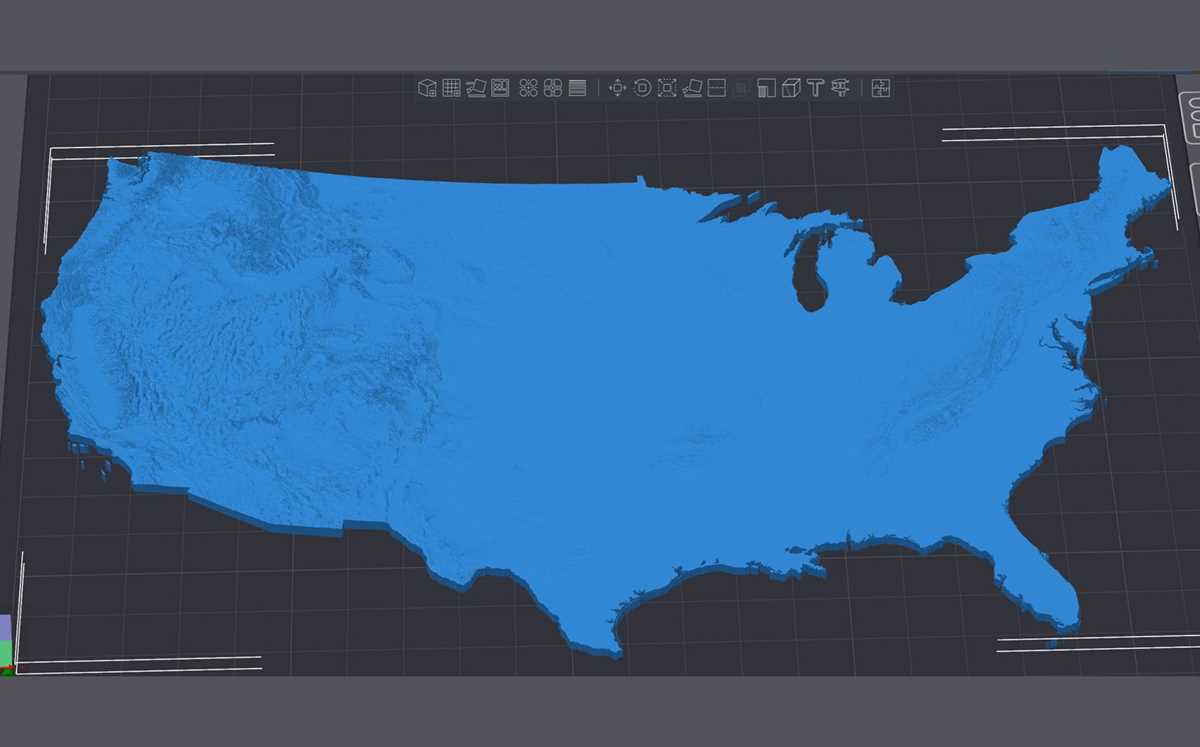
Start by visiting popular 3D model repositories like Thingiverse, MyMiniFactory, or TurboSquid. These platforms offer a wide selection of geographic models that can be downloaded in various file formats, such as STL and OBJ. To begin the download process, search for specific types of designs, whether you need terrain, city layouts, or historical maps. Once you find the desired file, click on the download link to save it to your computer.
After downloading the model, check if any customizations are required. Some platforms allow you to alter parameters, such as size or detail level, before downloading. If customization isn’t available directly from the website, you can use design software like Tinkercad or Blender to adjust the model. These tools allow you to modify the design, merge different parts, or make it compatible with your specific printer’s settings.
To access the downloaded design, open it in your preferred 3D printing software. Programs like Ultimaker Cura, PrusaSlicer, or MatterControl are excellent options for preparing your model for printing. In these programs, you can adjust printing parameters such as material type, layer height, and orientation. Once you’re satisfied with the settings, export the file in a format your 3D printer can read, such as G-code, and begin the printing process.