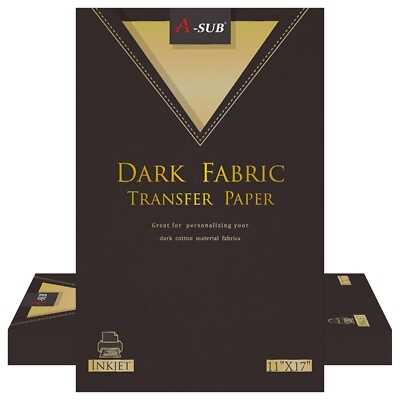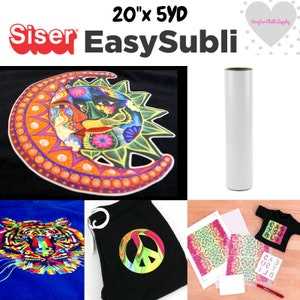
For those looking to create large, custom designs on clothing or other fabric items, using heat transfer sheets in 11×17 size can significantly increase your creative options. Make sure your printer is compatible with the larger sheets, and always choose a high-quality transfer material suited for your project. Select materials with a smooth, glossy finish to ensure clean and vivid transfers. Ensure your printer is loaded with the correct settings for these larger sheets to avoid any alignment or quality issues.
Before applying, preheat your press to the right temperature–usually around 330°F to 350°F, depending on the material type. Always conduct a test press with a scrap piece to ensure the right balance of time and pressure. Make sure the fabric is free of wrinkles, dust, and oils to achieve the best adhesion. A good practice is to heat press the fabric for a few seconds before placing the design to help it accept the heat transfer better.
For intricate designs, be mindful of the cut quality. Ensure that your plotter or cutter settings are adjusted to match the material thickness, and always use a sharp blade. If any areas of the design don’t transfer cleanly, it may be necessary to increase press time or pressure slightly. Be aware that temperature inconsistencies or incorrect paper backing can cause premature peeling or incomplete transfers.
11×17 Printable HTV Guide
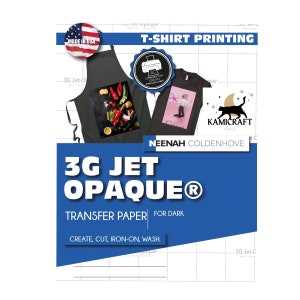
Before beginning your project, ensure that your printer supports larger heat transfer sheets. Many printers, including inkjet and laser models, are compatible, but you should double-check the paper size settings in the print dialog. Choose high-quality transfer sheets designed specifically for your chosen fabric type–these will provide superior color accuracy and durability once transferred.
Once the transfer material is printed, allow it to dry for a few minutes to avoid smudging. This is especially important if you’re using an inkjet printer. Additionally, ensure your fabric is clean, smooth, and free from any oils or dust. Pre-press the fabric for 5-10 seconds to eliminate wrinkles and moisture before applying the transfer material.
When positioning the transfer sheet on the fabric, be precise. A common mistake is misalignment, which can ruin the design. Place a protective sheet, like parchment paper or a Teflon sheet, over the transfer before pressing it to prevent direct heat exposure to the material. This layer also helps distribute the heat evenly.
The heat press or iron should be set to the recommended temperature for the specific material you are using, typically between 330°F and 350°F. Pressing for the right duration is also key–generally 10-15 seconds, depending on the material’s thickness. Applying too much heat or pressure can damage the fabric, while insufficient heat may cause poor adhesion.
After pressing, allow the fabric to cool for a few moments before removing the backing. Gently peel off the transfer paper while it’s still warm to ensure a clean release. If you notice any edges lifting, apply additional heat and press again for a few more seconds to secure the transfer.
For durability, always follow care instructions for the finished product. Avoid washing the item for at least 24 hours to let the transfer fully bond with the fabric. Machine washing on a gentle cycle and air drying will help preserve the design. Avoid using fabric softeners, which can break down the transfer over time.
Preparing Your Printer and HTV for 11×17 Designs
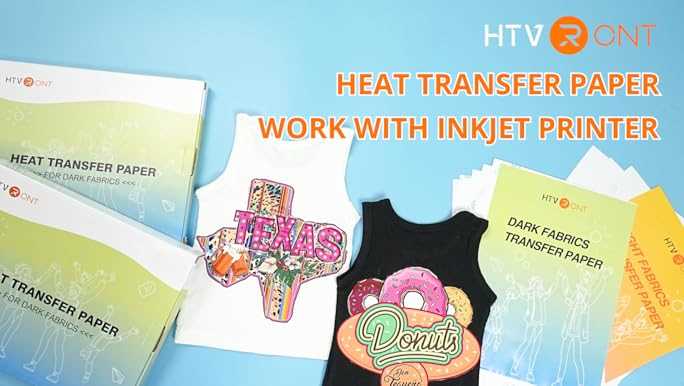
First, confirm that your printer supports the larger transfer sheets. If you’re using an inkjet printer, ensure it can accommodate the wider paper size and handle the thickness of heat transfer materials. Check your printer’s manual for paper size limits and adjust settings accordingly in the printer’s preferences menu.
For laser printers, it’s important to use the correct type of transfer material that is compatible with the heat and pressure settings. Some transfer sheets are designed specifically for inkjet or laser printers, so verify the product specifications before starting your project. Always use sheets with a smooth, glossy finish for sharper prints.
Set your printer to high-quality print mode to ensure maximum color saturation. A draft or normal print setting may result in colors not transferring properly. If your printer has a specific setting for printing on transfer materials, select that option to optimize ink usage and improve image clarity.
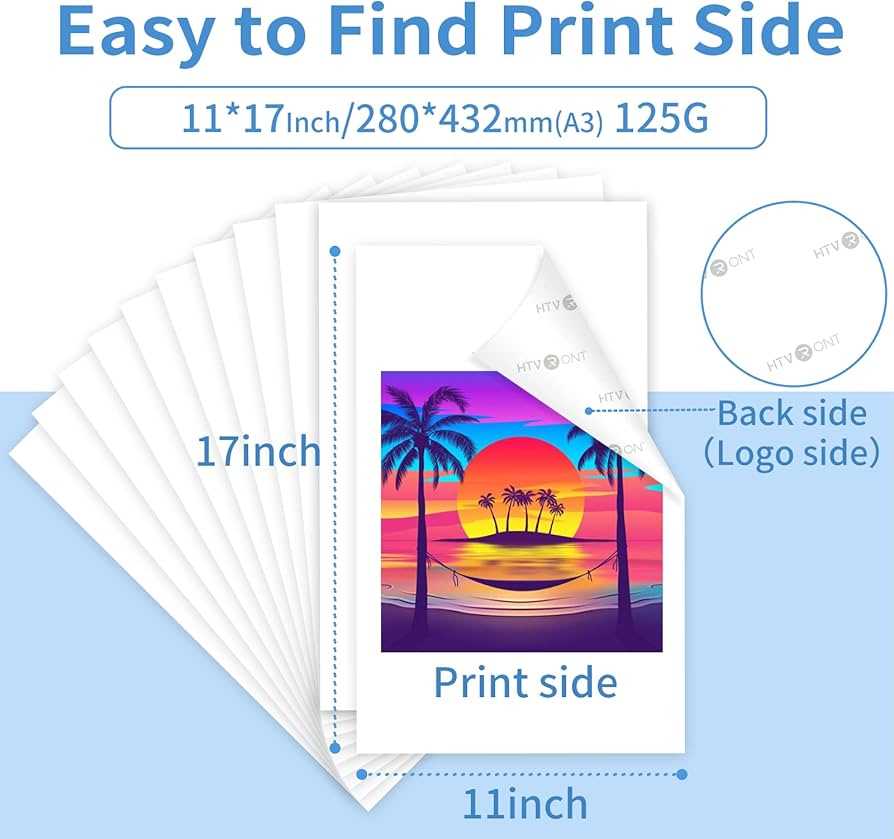
Before printing, load the transfer paper in the correct orientation. Most transfer sheets have a specific side that should face the printer. Be sure to load the paper with the glossy side up for inkjet printers or down for laser printers, depending on the manufacturer’s instructions.
Perform a test print to ensure that the design fits on the page and is correctly aligned. Make sure that your design is sized to fill the available space without being cropped. Adjust the design settings in your design software if necessary to ensure proper placement on the transfer material.
Once your design is printed, let the sheet sit for a few minutes to dry. This prevents smudging or smearing, especially for inkjet prints. After drying, inspect the print for any errors or smudges. If you notice any issues, discard the sheet and print a fresh one.
Keep your printer clean and free of dust and debris, as these can cause print quality problems. Regularly clean the print heads or toner cartridge, depending on the printer type, to maintain smooth and consistent output. Clean paper trays and rollers to prevent misfeeds during the printing process.
Lastly, verify that your printer software is up to date. Outdated drivers or software can cause issues with paper handling and print quality. Check the manufacturer’s website for any firmware or software updates to ensure optimal printer performance before starting your project.